Rapid blue blink
Pairing mode. Pulsar is discoverable for 60 seconds.


Pulsar v1 · User guide
Everything you need after installation: waking Pulsar, connecting a device, reading the lights and getting back into a game when something does not behave as expected.
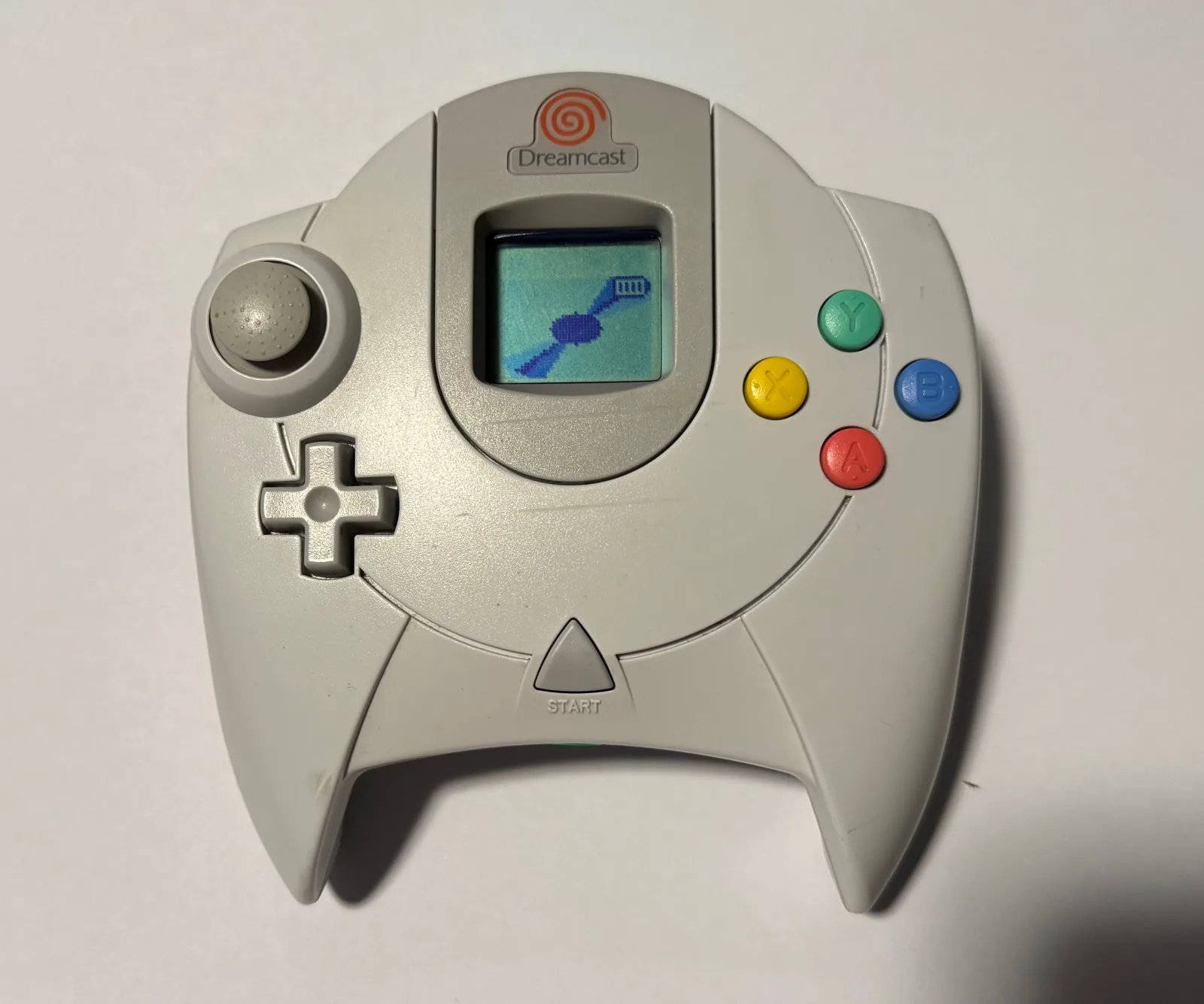
First connection
On its first start, Pulsar enters pairing mode automatically for 60 seconds.
Press the Sync button once. Pulsar starts up and looks for a connection.
If the blue light is not already blinking quickly, hold Sync until it does. This takes about 2 to 3 seconds. Then release.
Open your device's Bluetooth settings and select Xbox Wireless Controller.
The status light turns green. Test the stick and a few buttons, then start your game.
At a glance
The first LED reports status. The remaining four form the battery gauge.
Pairing mode. Pulsar is discoverable for 60 seconds.
Bluetooth is connected, but Pulsar is still looking for the controller.
The controller is found and ready to use.
Pulsar is asleep or waiting quietly for a host. Press Sync once.
Controller mapping
Face buttons and the D-pad keep their names. The Dreamcast analog stick becomes the Xbox left stick, and Start becomes Menu.
| Dreamcast | Host sees |
|---|---|
| A / B / X / Y | A / B / X / Y |
| Start | Menu |
| D-pad | D-pad |
| Analog stick | Left stick |
| Left / Right trigger | Left / Right trigger |
Guide / Xbox button
Hold all three for about one-third of a second. This opens experiences such as Steam's overlay or Xbox Game Bar. Pulsar suppresses the triggers and Start while the chord fires.
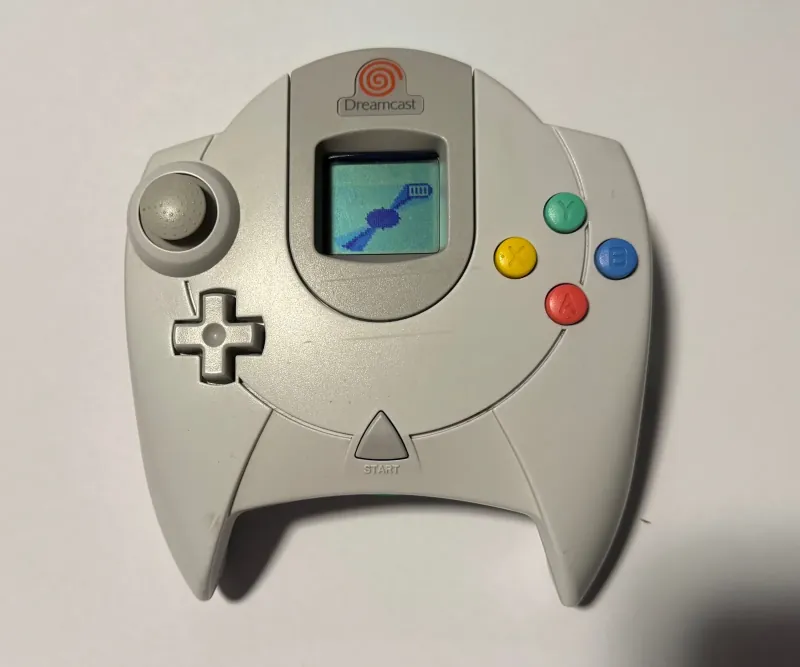
VMU display
With a VMU inserted, its screen shows the active profile after connection, a rotating Pulsar
and battery indicator during play, SYNC while pairing and BYE before
sleep.
The VMU is display-only in Pulsar today. No supported BLE receiver sends the Dreamcast's Maple bus data back to the controller, so the VMU cannot show a game's screens or transfer saves.
For Dreamcast-side saving, Midwest Mods offers adapters based on the Pico2Maple project. Those adapters provide virtual VMU saving on the receiver rather than transferring saves to the VMU in the controller. I hope future BLE development can connect those VMU features to Pulsar, but that is not supported today.
Profiles and limits
Xbox is the default and the best place to start. The alternate profile is a generic gamepad.
Xbox Wireless Controller
Best-tested on Steam Deck, macOS with Steam, Windows with Steam, Linux with xpadneo and Dreamcast Bluetooth receivers such as iBlueControlMod.
Dreamcast Wireless Controller
Try this if your host does not recognize the Xbox profile correctly, or if you prefer a neutral gamepad without an Xbox-specific identity. It uses a standard generic Bluetooth gamepad layout. Despite the name, it does not emulate a Dreamcast controller.
After switching profiles, forget the old controller in your host's Bluetooth settings and pair again. Hosts commonly remember the previous control layout.
Good to know
Power
Use a standard USB power brick or phone charger. Pulsar can charge while asleep. If a laptop stops supplying power to sleeping devices, use a wall charger instead.
Pulsar sleeps after about 60 seconds without a connection, after 60 seconds without finding the controller, or after 10 minutes without controller input.
Press Sync once. Pulsar restarts and looks for the last paired device; there is no need to pair again during normal use.
An inserted VMU draws additional power and reduces battery life between charges. Remove it when you do not need the display to get the longest runtime.
Firmware
Pulsar v1 installs signed firmware over Bluetooth Low Energy. There is no companion app or wired update cable.
Use Chrome or Edge on a computer, or Chrome on Android. Safari and Firefox do not support the Web Bluetooth connection used by the updater.
Pulsar must be at least 50% charged or connected to a charger. Below 50%, it refuses to enter update mode so it cannot lose power during an update.
Open the firmware update page in your supported browser.
Hold Start on the Dreamcast controller, then hold Sync for about 3.5 seconds. Three quick flashes confirm the gesture.
Select Connect & update, then choose PulsarDFU from the browser's device list.
Keep Pulsar nearby until the page reports Update complete. It verifies the update and restarts automatically.
If an update is interrupted, return to the update page and try again. Update mode remains available, and reinstalling the same firmware version is allowed.
Troubleshooting
Open the symptom that best matches what Pulsar is doing.
This is expected. Pulsar waits for a BLE host to connect before it powers the Dreamcast controller. Pair Pulsar first. Once connected, an inserted VMU chirps and the status light turns green. If they remain dark after the host connects, check the internal controller connection.
Make sure Bluetooth is on, then press Sync once. If you held Sync long enough to enter pairing mode, the old bond was cleared: forget the controller on the host and pair again.
Give the host a few seconds to discover the controller services. If the status light stays red instead of turning green, Pulsar cannot find the Dreamcast controller. If it was just installed, reopen the shell and reseat the white internal cable connector.
The usual update gesture uses the controller's Start button. If Pulsar cannot read it, use this controller-free fallback:
Keep holding on the third press. Three quick taps switch profiles instead of entering update mode.
Use Chrome or Edge on a computer, or Chrome on Android. Safari and Firefox cannot open the
Web Bluetooth device chooser. Make sure Pulsar is in update mode and look for PulsarDFU, not its usual controller name. If an inserted VMU shows CHRG, charge Pulsar to at least 50% or connect it to a charger, then try again.
Start with the Xbox profile. Check Steam Input or your host's controller settings for custom remapping. If you switch profiles with three quick Sync presses, forget the old Bluetooth entry and pair again so the host reads the new layout.
It sleeps after about 60 seconds without a usable connection or after 10 minutes without controller input. Press Sync once to wake it. If it sleeps while you are actively playing, check the charge and the internal controller connection.
This is expected on current shipped units. A rumble motor is not fitted, and the current firmware does not support rumble. Pulsar is open source, so this may be developed later. Games may still show rumble options because the Xbox profile advertises the standard output report.
Normal. Pulsar reports four battery levels at approximately 25%, 50%, 75% and 100%. It does not show a continuously moving percentage.
Use this only as a last resort for a completely stuck Pulsar. Disconnect the Dreamcast controller from Pulsar and wait at least 10 seconds for Pulsar to fully power off. Firmly reseat the connection, then try again.